WebPro Education

Tech tips everyday
Menu
  • REVIEWS
  • VIDEOS
Home
VIDEOS
How To Wirelessly Transfer Files Photos&Videos Between OnePlus 13 & Mac
VIDEOS

How To Wirelessly Transfer Files Photos&Videos Between OnePlus 13 & Mac

Dennis Gacheru February 17, 2025

Transferring files, photos & videos between a OnePlus 13 & a Mac without cables offers a seamless way to move data quickly. Whether you need to send high-resolution images, large videos, or important documents, using a wireless method ensures convenience. With the right settings, you can establish a stable connection & avoid the hassle of physical transfers.

There are multiple ways to wirelessly transfer files between a OnePlus 13 & a Mac, each offering speed & efficiency. By choosing the best option, you can share content effortlessly without interruptions. Once set up, future transfers become even smoother, allowing you to send & receive files with just a few taps.

Watch:How To Disable Google Discover/Feed Page On OnePlus 13

Wirelessly Transfer Files Photos&Videos Between OnePlus 13 & Mac

Open Snapdrop on Both Devices

On your Mac, open a browser & go to snapdrop.net. Do the same on your OnePlus 13 using any browser.

Connect to the Same Wi-Fi Network

Ensure both devices are on the same Wi-Fi. Once connected, they will detect each other automatically.
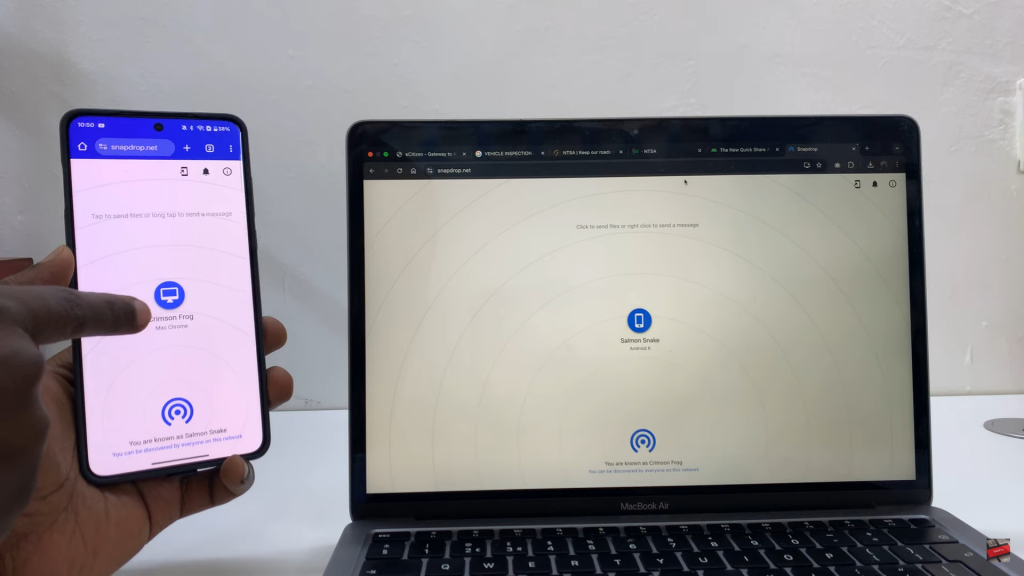
Wirelessly Transfer Files Photos&Videos Between OnePlus 13 & Mac

Transfer Files from OnePlus 13 to Mac

Tap on your Mac’s name on the Snapdrop interface.

Grant necessary permissions if prompted.
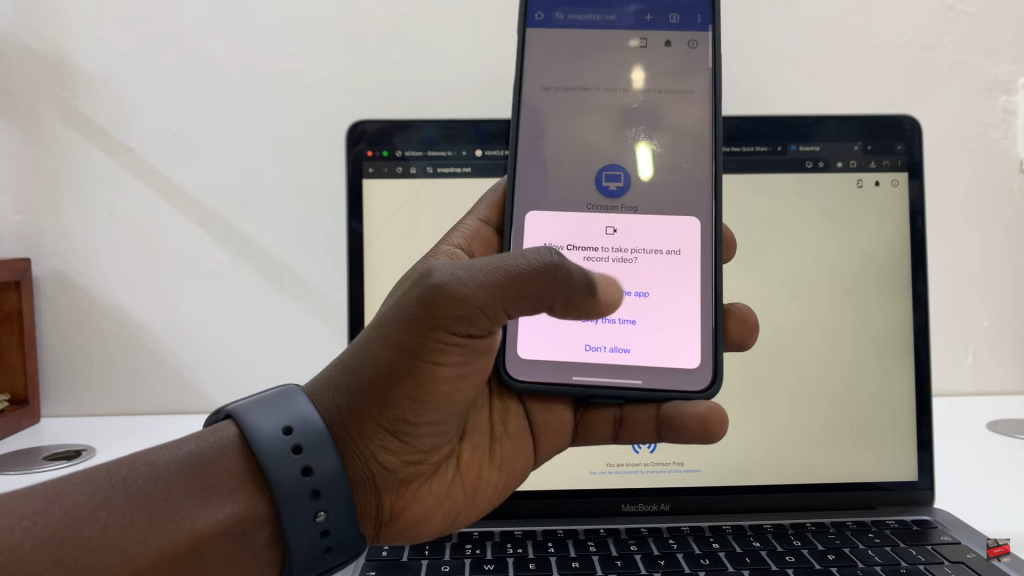
Wirelessly Transfer Files Photos&Videos Between OnePlus 13 & Mac

Choose the type of file: Photos, Videos, or Documents.
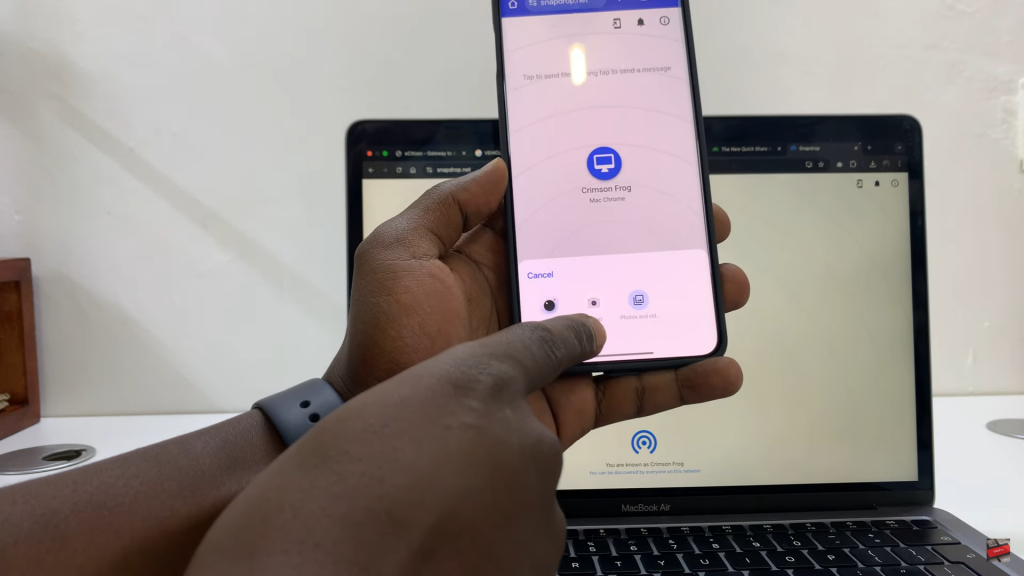
Wirelessly Transfer Files Photos&Videos Between OnePlus 13 & Mac

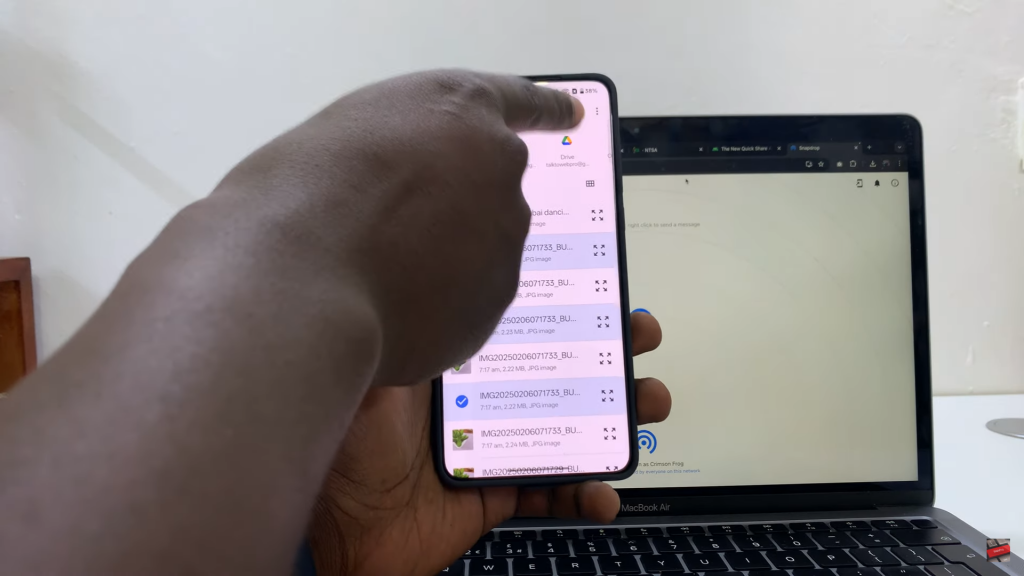
Select the files you want to transfer & tap Select to send.
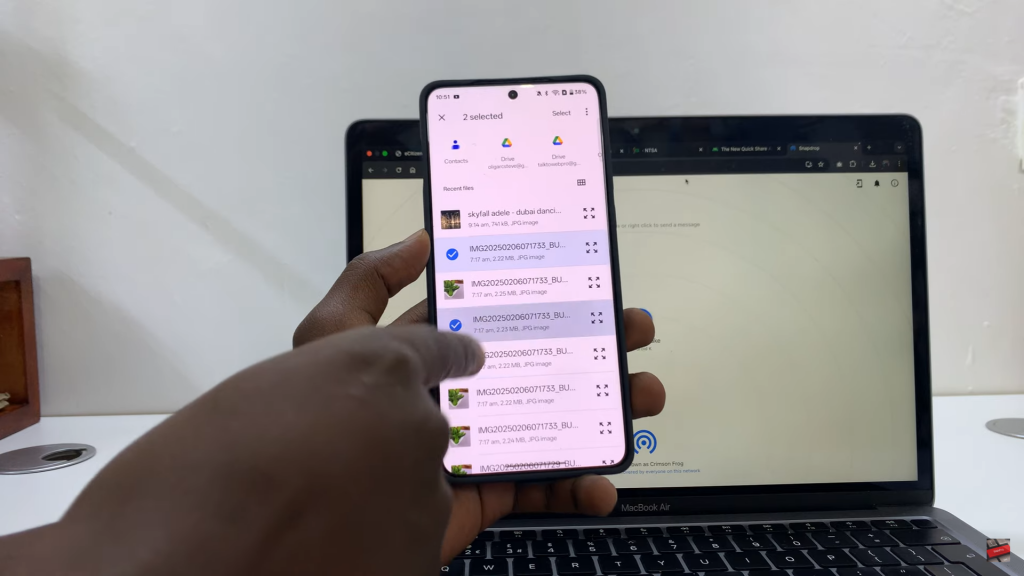
Wirelessly Transfer Files Photos&Videos Between OnePlus 13 & Mac

On your Mac, click Save & choose a destination folder.
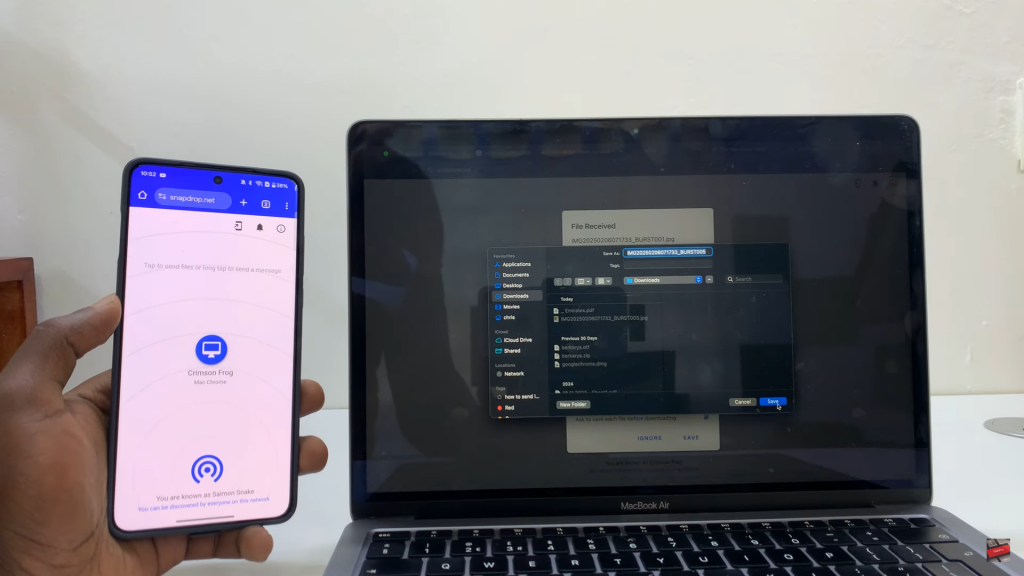
Wirelessly Transfer Files Photos&Videos Between OnePlus 13 & Mac

    Transfer Files from Mac to OnePlus 13

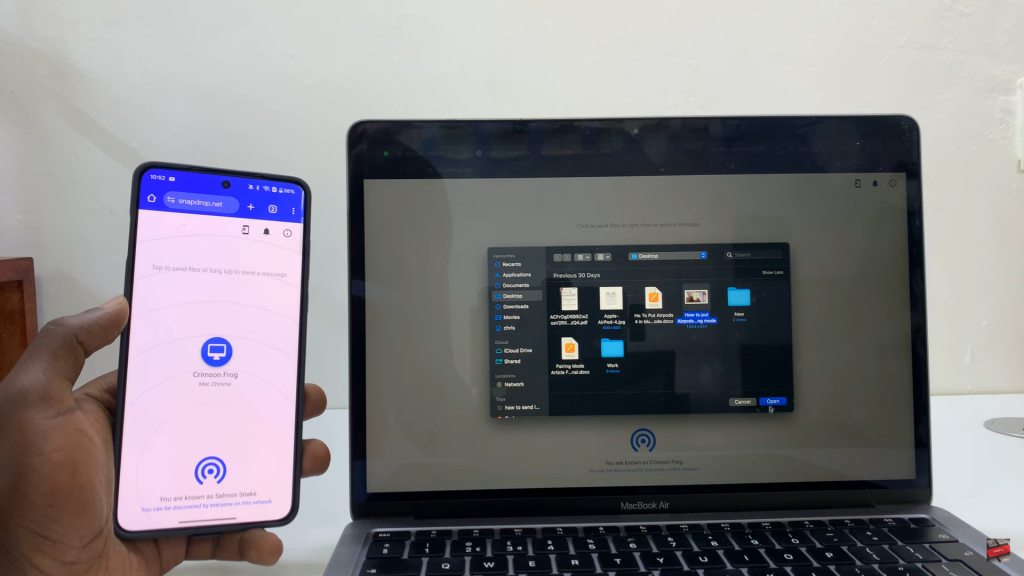
    Click on your phone’s name in Snapdrop on your Mac.

    Finder will open—select the file to transfer.
    Wirelessly Transfer Files Photos&Videos Between OnePlus 13 & Mac

    Click Open to send the file.

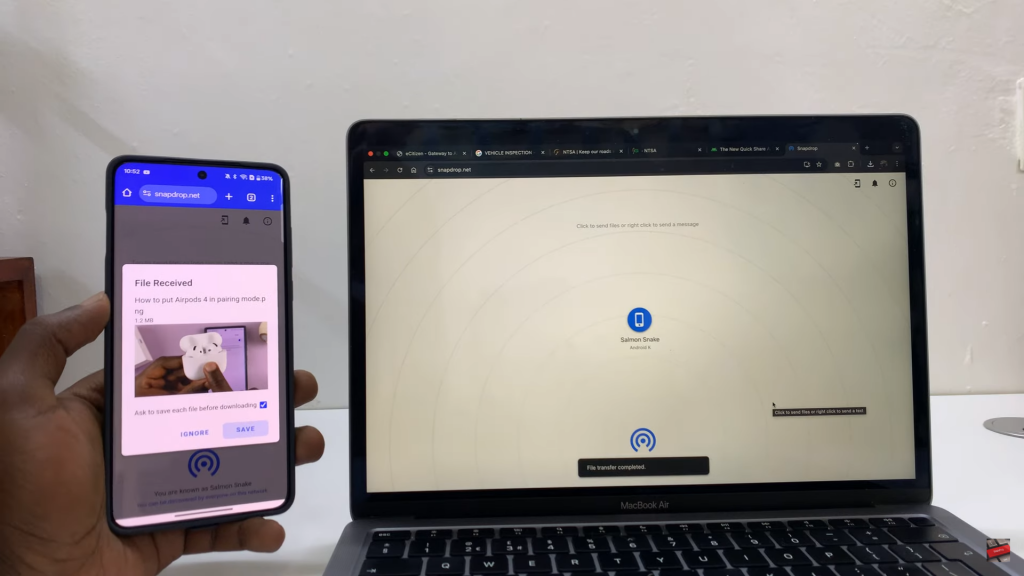
    On your OnePlus 13, tap Save to download the file.
    Wirelessly Transfer Files Photos&Videos Between OnePlus 13 & Mac

      Read:How To Disable Google Discover/Feed Page On OnePlus 13

      Share
      Linkedin
      Whatsapp
      Tweet
      Reddit
      Stumble
      Tumblr
      Email
      Prev Article
      Next Article

      Related Articles

      No Vibration On iPhone 16 / 16 Pro – Quick FIX

      No Vibration On iPhone 16 / 16 Pro – Quick FIX

      How To Enter Pairing Mode On Sony WH-1000XM6

      How To Enter Pairing Mode On Sony WH-1000XM6

      About The Author

      Dennis Gacheru

      As an author, I am passionate about crafting clear and engaging content that informs and inspires readers. My writing style is characterized by straightforward language and structured organization, making complex topics accessible to a wide audience. I strive to provide valuable insights while ensuring that my work remains enjoyable to read.

      • Facebook
      • Twitter
      • YouTube
      • Instagram
      • Reddit
      • Link
      • TikTok
      • How To Enable Data Switching On Samsung Galaxy.
      • How To Make Google Wallet Your Default Wallet App On Samsung Galaxy.
      • How To Stop Samsung Phone From Automatically Switching To Different Wifi Networks
      • How To Disconnect Bluetooth Devices Without Unpairing From Samsung Galaxy
      • How To Disable Data Switching On Samsung Galaxy.

      Recent Posts

      WebPro Education

      Tech tips everyday
      Copyright © 2026 WebPro Education

      Ad Blocker Detected

      Our website is made possible by displaying online advertisements to our visitors. Please consider supporting us by disabling your ad blocker.

      Refresh